Set up a new OLED iPad mini and learn the settings and gestures that matter most, including multitasking with split screen so you can take notes beside another app. It suits beginners who just unboxed an iPad. You need your iPad, an Apple ID and a Wi-Fi connection.
YouTube video: OLED iPad mini 2026 Settings (Beginners Miss This!)
Caption availability is unknown. Check the CC control in the YouTube player.
Choose a chapter (24)
- Video length
- 14 min 20 s
- Time to do it
- 20 minutes
- Difficulty
- Easy
- Steps
- 8
What you need
Steps
Open Settings and check battery health and cycle count so you know the condition of a new or open box iPad.
In Settings, open Display & Brightness, turn on Dark Mode and adjust text size and bold text for easier reading.
Turn on Find My so your iPad can be located if it is lost. Sign in with your Apple ID when asked.
Learn the app switcher gesture: swipe up from the bottom and pause to see open apps, then swipe between them.
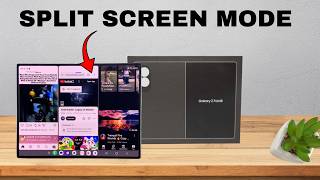
Open your notes app, then open a second app like Safari. Drag an app from the Dock onto the screen edge to start split screen.
Drag the divider between the two apps to resize each side, and use the three dots at the top to switch between split view and Stage Manager.
Swipe down from the top right corner for Control Center, and add screen recording or quick note if you use them often.
In Settings, add extra fingerprints under Touch ID so you can the iPad and locked apps easily.
Tips and common mistakes
If split screen does not start, make sure the app you drag supports multitasking and that Stage Manager is off.
Use the corner swipe gesture to open a quick note over any app without leaving what you are doing.
Connect a USB-C drive to move files, and scan documents straight into the Files app when needed.
Questions
Can I use split screen with any app?
No. Both apps need to support multitasking. If dragging an app does nothing, that app does not support split view.
How do I get out of split screen?
Drag the divider all the way to one side, or tap the three dots at the top and choose full screen.
Does split screen work with Apple Pencil notes?
Yes. You can write in a notes app on one side while a reference app stays open on the other.
The notes are drafted automatically from video details and general task knowledge. How the guide was prepared
Report a correction