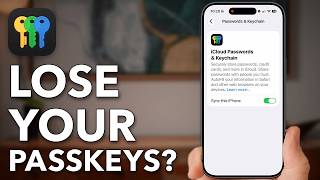
Passkeys let you sign in to apps and websites with your fingerprint, face or screen lock instead of typing a password. This guide walks you through creating your first passkey, signing in with it, and what to do if your phone is lost. It suits anyone with a phone that has a screen lock set up.
YouTube video: Passkeys Explained: How You Log In Without a Password
Caption availability is unknown. Check the CC control in the YouTube player.
Choose a chapter (7)
- Video length
- 3 min 40 s
- Time to do it
- 10 minutes
- Difficulty
- Easy
- Steps
- 8
What you need
Steps
Check that the site or app supports passkeys. Look in its account or security settings for a section called Passkeys, Sign-in options or Security keys.
Sign in with your existing password first. You add a passkey from inside your account, so you need one normal login to get started.
Tap Create a passkey and confirm with your fingerprint, face or PIN. Your phone makes two linked keys: a private one that stays on the phone and a public one sent to the site.
Check the passkey now appears in your phone's password manager or in your Google or Apple account security settings. That list is where you manage or remove it later.
Sign out and test it. On the login screen, tap the account field, pick your saved passkey, then confirm with your fingerprint or face.
Know what the phone is doing. The site sends a one-time challenge, your phone signs it with the private key, and the site checks the signature with your public key.
To sign in on another device, choose the passkey option there and scan the QR code with your phone. Confirm on the phone and you are in without typing a password.
If you lose your phone, sign in on a device already signed into the same Google or Apple account. Passkeys sync end to end encrypted, so you can get in and then remove the lost device from your account.
Tips and common mistakes
A look-alike site gets nothing from your passkey because it is tied to the real web address, so still check the domain before you tap.
Keep a screen lock on your phone at all times, since the passkey only works after your fingerprint, face or PIN check.
Do not delete your only passkey until you have another sign-in method set up, or you may lock yourself out.
Set up account recovery before you rely on passkeys alone.
Questions
Are passkeys safer than passwords?
Yes. There is no shared secret to guess, reuse or steal from a website, and the private key never leaves your phone. A fake login page cannot use it because the key is matched to the real site.
What happens if I lose my phone?
Your passkeys are backed up with encrypted sync through your Google or Apple account, so you can reach them on another signed-in device. Remove the lost phone from your account once you are back in.
Can I use a passkey on a shared computer?
Yes, by scanning a QR code with your phone and confirming there. The passkey stays on your phone, so nothing is left behind on the computer.
The notes are drafted automatically from video details and general task knowledge. How the guide was prepared
Report a correction