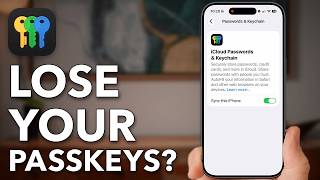
Passkeys let you sign in to websites with your fingerprint, face or screen lock instead of typing a password. This guide walks you through choosing a passkey manager, creating your first passkey and using it to log in. You need a passkey-compatible site and a phone or computer with a screen lock set up.
YouTube video: 1Password Passkey Setup Guide | Passkeys Explained in 5 MINUTES!
Caption availability is unknown. Check the CC control in the YouTube player.
Choose a chapter (5)
- Video length
- 4 min 45 s
- Time to do it
- 10 minutes
- Difficulty
- Easy
- Steps
- 8
What you need
Steps
Know what a passkey is. It is a pair of digital keys: the private key stays locked on your device or in your password manager, and the public key sits with the website. Nothing secret gets typed or sent.
Compare the two. Passkeys cannot be phished or reused across sites, while passwords can be leaked and shared. Passkeys are tied to your device, so a stolen password list is useless.
Choose where your passkeys live. Use 1Password, or the keychain built into your phone such as iCloud Keychain or Google Password Manager. Install the app and sign in.
Turn on biometric in your manager so passkeys can be approved with your face, finger or PIN. Sign in to the same account on your other devices so the passkeys sync across.
Create a passkey on a site. Open the site's account or security settings, find the passkey or security key option, and choose Add passkey. Approve the prompt with your face, finger or PIN.
When the browser asks where to save the passkey, pick 1Password or your chosen manager. Give it a clear name if the site asks, so you can recognise it later.
Log in with the passkey. Go to the site's sign-in page, enter your username if asked, then choose Sign in with a passkey and confirm with your biometrics.
Repeat the setup on your other devices and accounts. Check the site's list of saved passkeys and remove any old ones you no longer use.
Tips and common mistakes
Keep your password as a backup and do not delete it until the passkey works on every device you use.
Passkeys do not move between managers, so a passkey saved in Google Password Manager will not show up in 1Password.
Check the web address before creating a passkey, since passkeys are tied to one domain and phishing copies will not match.
Store your account recovery codes somewhere safe in case you lose the device holding your passkeys.
Questions
Are passkeys safer than passwords?
Yes. There is no shared secret to steal or guess, and the private key never leaves your device, so phishing and password leaks do not work against them.
Do I need 1Password to use passkeys?
No. Your phone and browser have a built-in passkey manager you can use for free. A dedicated manager helps if you want passkeys synced across different brands of devices.
What happens if I lose my phone?
If your passkeys sync to a manager account, sign in on a new device and they come back. Otherwise use the site's backup password or recovery code to get in and create a new passkey.
The notes are drafted automatically from video details and general task knowledge. How the guide was prepared
Report a correction