Passkeys replace typed passwords with a fingerprint, face or screen lock check on your own device. This guide shows how to add your first passkey to a Google or Microsoft account and test it. It suits anyone who wants fewer passwords and better protection against fake login pages. You need a phone or computer with a screen lock already set up.
YouTube video: Passkeys Explained: Why Passwords Are Finally Going Away
Captions are available. Use CC in the YouTube player.
Choose a chapter (11)
- Video length
- 5 min 35 s
- Time to do it
- 5 minutes
- Difficulty
- Easy
- Steps
- 8
What you need
Steps
Check your device supports passkeys. You need iOS 16 or later, Android 9 or later, or a current version of Chrome, Edge or Safari. Install any pending system updates first.
Sign in to your account with your password as usual, then open the security settings. On Google that is myaccount.google.com, then Security. On Microsoft it is account.microsoft.com, then Security.
Find the passkeys section and choose Add a passkey or Create a passkey. Approve the prompt with your fingerprint, face or screen lock PIN.
Give the passkey a name you will recognise, such as the device model, so you can tell several passkeys apart later.
Sign out and sign back in to test it. Enter your username, choose the passkey when asked, then confirm with the same fingerprint or face.
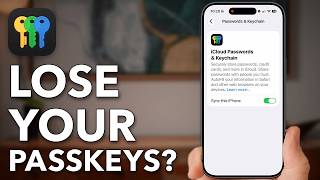
Decide whether to sync. Passkeys stored in iCloud Keychain or Google Password Manager follow you to your other signed-in devices, while device-bound ones stay on one device only.
Add a second passkey on another device, or keep a recovery code or backup sign-in method, so a lost or broken phone does not lock you out.
If a device goes missing, sign in from somewhere else and delete its passkey from the security page of your account.
Tips and common mistakes
A passkey keeps its private key on your device, so a fake login page has nothing useful to steal.
Add your backup passkey before you remove your password, not after.
Do not delete an old passkey until the new one is confirmed working at sign-in.
Name passkeys after the device, for example Work laptop or Pixel phone, so you can remove the right one later.
Questions
Are passkeys safer than passwords?
Yes. Each sign-in uses a private key that never leaves your device, so there is no shared secret to phish or reuse on another site. The site only stores the matching public key.
What happens if I lose my phone?
Sign in on another device or use your account recovery options, then remove the lost device's passkey from your security settings. Keeping a second passkey or backup code makes this much easier.
Do I still need my password?
Many services keep the password as a backup or recovery option, and some let you remove it once a passkey works. Keep at least one working sign-in method at all times.
The notes are drafted automatically from video details and general task knowledge. How the guide was prepared
Report a correction