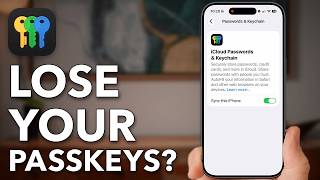
A passkey lets you sign in to a website or app with your fingerprint, face or screen lock instead of typing a password. This guide walks you through creating your first passkey, testing it and keeping a way back in if you lose your phone. It suits anyone with a phone or computer made in the last few years.
YouTube video: Passkeys Explained: How They Replace Your Passwords
YouTube’s video details do not confirm captions. Check CC in the player for available tracks.
Choose a chapter (18)
- Video length
- 6 min 46 s
- Time to do it
- 10 minutes
- Difficulty
- Easy
- Steps
- 8
What you need
Steps
Pick one account to switch first, such as your Google, Apple or Microsoft account. Sign in and open its security or sign-in settings, then look for an option labelled Passkeys or Add a passkey.
Tap Create a passkey. Your device makes a matched pair of keys: the private key stays on your phone or computer, and the public key goes to the website.
Confirm with your fingerprint, face or screen lock. That is what approves the new passkey, and the biometric data never leaves your device.
Give the passkey a clear name like the device it lives on, so you can tell several of them apart later.
Sign out of the account and sign back in. Choose the passkey option instead of typing your password, then confirm with your fingerprint or face.
Add a second passkey on another device, or use the site's sign-in-on-another-device option and scan the QR code with your phone.
Set up a way back in. Check that passkey sync is on in iCloud Keychain or Google Password Manager, and note any recovery codes the site offers.
Keep your old password for a week or two while you get used to the passkey, then remove it only if the site allows and you have a backup device.
Tips and common mistakes
A passkey is tied to the real address of the site, so a copycat login page cannot use it. That is why phishing fails against passkeys.
Turn on passkey sync before you need it. If your phone is lost, recovery usually depends on the company that stores your passkeys.
Passkeys do not always replace 2-step codes. Some sites still ask for a code, so leave your authenticator app installed.
Start with one account, not all of them, so a mistake does not lock you out of everything at once.
Questions
Do I have to remember anything with a passkey?
No. Your device holds the private key and unlocks it with your fingerprint, face or screen PIN. There is no password to type or memorise.
What happens if I lose my phone?
If your passkeys sync to your iCloud or Google account, sign in on a new device with that same account and they come back. If not, use the recovery options or a second passkey you set up earlier.
Can I still sign in with my password?
On many sites, yes. The password usually stays as a fallback until you remove it, which is handy while you are still testing the passkey.
The notes are drafted automatically from video details and general task knowledge. How the guide was prepared
Report a correction