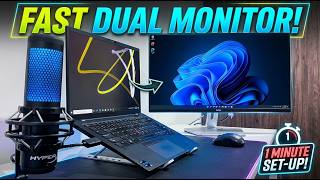
Windows often leaves a new 144Hz monitor running at 60Hz until you change it by hand. This guide shows where the refresh rate setting lives in Windows 10 and 11, and what to check when 144Hz does not appear. It suits anyone with a high refresh monitor and a DisplayPort or HDMI 2.0 cable.
YouTube video: How To Enable 144hz on Your Monitor - Windows Tutorial
Caption availability is unknown. Check the CC control in the YouTube player.
- Video length
- 3 min 35 s
- Time to do it
- 5 minutes
- Difficulty
- Easy
- Steps
- 9
What you need
Steps
Right-click an empty spot on the desktop and choose Display settings.
Scroll down to the Advanced display section and click it. In Windows 10 the link is called Advanced display settings.
Find the Choose a refresh rate dropdown and click it to see the available rates.
Pick 144Hz, or the highest rate your monitor lists. The screen may go black for a second while it switches.
Click Keep changes on the confirmation prompt. If you do nothing, Windows reverts to the old rate.
If 144Hz is missing, check the cable and port first. Use DisplayPort or HDMI 2.0 and plug into the graphics card, not the motherboard.
Open your graphics card control panel as a backup. In NVIDIA Control Panel go to Display, Change resolution, then set the Refresh rate. In AMD Software go to Display and set the refresh rate there.
Check the monitor's own on-screen menu for a DisplayPort version or Overclock option and enable it if present.
Open a game's video settings and set the refresh rate or frame limit to match 144Hz.
Tips and common mistakes
A cheap or old HDMI cable often caps the signal at 60Hz even when the monitor supports more.
Some monitors ship with an overclock setting turned off in the on-screen menu, so 144Hz stays hidden until you enable it.
If the screen stays black after switching, wait 15 seconds without pressing anything and Windows will restore the old setting.
Update your graphics driver if the refresh rate list looks short or wrong.
Questions
Why is 144Hz not showing in the dropdown?
The usual causes are a cable or port that cannot carry the bandwidth, or a monitor setting that needs enabling first. Try a DisplayPort cable and check the monitor menu before assuming the screen is faulty.
Does 144Hz work over HDMI?
Yes, but only with HDMI 2.0 or newer and a certified cable. DisplayPort is the safer choice for 144Hz at 1440p.
How do I confirm the new rate is active?
Go back to Advanced display settings and read the current refresh rate shown at the top. It should list 144Hz instead of 60Hz.
The notes are drafted automatically from video details and general task knowledge. How the guide was prepared
Report a correction