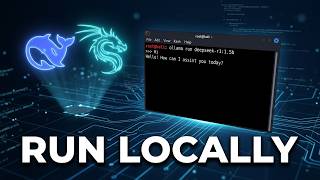
Total Beginners Guide to Local AI on Mac, by Samuel Gregory on YouTube. 38 min 41 s.
- Video length
- 38 min 41 s
- Time to do it
- 45 minutes
- Difficulty
- Medium
- Steps
- 10
What you need
Steps
Check your Mac's chip and RAM under the Apple menu, About This Mac. RAM matters more than CPU here, so note the exact number before choosing a model size.
Pick a model that fits your RAM. A rough guide is 8GB for small 7B to 8B models, 16GB for 13B to 14B, and 32GB or more for 30B and larger models.
Choose a quantized version of the model. Lower bit quantizations like 4-bit shrink the file so it fits your memory, at some cost to quality.
Match the model format to your tool. Use MLX for Apple silicon tools like oMLX and MLX LM, and GGUF for Ollama and LM Studio.
Install Ollama and run a model from the terminal with a command like ollama run followed by the model name. It downloads and starts a chat prompt.
Or open LM Studio, search for the model, download the GGUF file and load it. Adjust the context window and temperature in the model settings panel.
If you use oMLX, download the MLX model, then set the context window, top P and temperature. Lower the context window if you want to run a larger model.
Start the local server in your tool so it listens on a local port. Note the address, usually something like localhost with a port number.
Open your harness such as OpenCode and point it at the local server address and model name in its config. Save the file and restart the harness.
Send a test prompt from the harness. Watch RAM use and response speed, then adjust the context window or model size if it is too slow.
Tips and common mistakes
Start with a small 7B or 8B model to confirm the whole stack works before trying bigger ones.
Keep the context window modest on 16GB Macs, since long contexts eat memory fast.
Close heavy apps before loading a large model so you do not hit swap and slow everything down.
Expect slower responses than cloud models, and let the Mac cool if fans ramp up during long runs.
Questions
How much RAM do I need for local AI on a Mac?
16GB is a practical minimum for small models. 32GB or more lets you run larger 30B-class models at usable speed.
Do I need to know the terminal?
Not strictly. LM Studio and oMLX have graphical interfaces, but a terminal helps for Ollama and for configuring harnesses.
Which is better, MLX or GGUF?
MLX is tuned for Apple silicon and often faster in MLX-native tools. GGUF is more widely supported across apps like Ollama and LM Studio.
This guide was drafted from the video's details and general task knowledge. It has not been checked against the full video. Check the video and relevant product instructions before following a procedure. Report a correction.