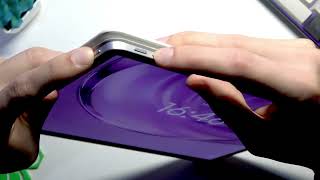
This guide walks you through swapping a cracked or unresponsive touchscreen on a KIUMO K7 tablet. It suits anyone comfortable with small screws and ribbon cables who wants to avoid buying a new device. You will need a replacement digitizer, plastic opening tools and a little patience.
YouTube video: KIUMO K7 DIY Touchscreen Replacement! How to Fix a Broken/Unresponsive Tablet Screen #KIUMOK7Repair
Captions are available. Use CC in the YouTube player.
- Video length
- 5 min 41 s
- Time to do it
- 45 minutes
- Difficulty
- Medium
- Steps
- 10
What you need
Steps
Turn the tablet fully off and unplug the charger. Set it face up on a clean, flat surface and keep a small tray nearby for screws and small parts.
Warm one edge of the screen with a hairdryer on medium heat for 30 to 60 seconds. Move along all four edges to soften the adhesive that holds the touchscreen.
Press a suction cup near a corner and slide a thin plastic opening pick into the gap. Work the pick slowly around the whole edge instead of forcing one spot.
Lift the touchscreen gently once the adhesive gives way. Stop as soon as you feel resistance and look for the ribbon cable before pulling the panel clear.
Disconnect the battery connector from the board before you touch the digitizer cable. This protects the board from shorts while you work.
Flip up the small latch on the touchscreen connector with a spudger or fingernail, then slide the ribbon cable out with tweezers. Set the old panel aside.
Scrape the old adhesive off the frame with a plastic tool and wipe the surface clean. Lay the new touchscreen in place and plug its ribbon into the connector.
Reconnect the battery and power the tablet on. Test touch response across all corners and the centre before you glue anything down.
Peel the backing off the adhesive strips, align the touchscreen with the frame edges, and press down firmly and evenly around the border.
Power on once more and run your finger over the whole screen to confirm every area responds. Recalibrate the touchscreen in settings if the tablet offers it.
Tips and common mistakes
Keep the heat moving and never hold a heat gun in one spot, since too much heat can damage the display and the battery underneath.
Use plastic picks and spudgers only, because a metal blade will gouge the frame and can slip into the battery.
Snap a photo of the ribbon cable routing before you unplug it so you know exactly how it goes back.
If touch still fails after fitting the new panel, reseat the connector latch before assuming the part is faulty.
Questions
Do I need to replace the whole touchscreen or just the glass?
On most budget tablets the digitizer and front glass come as one bonded unit, so you replace the whole touchscreen assembly. Check the listing for your exact KIUMO K7 model before ordering.
Can I reuse the old adhesive?
No, old adhesive loses its grip once you lift the panel. Use fresh double-sided tape or pre-cut adhesive strips so the new touchscreen sits flush and stays sealed.
What if the touchscreen still does not respond after the swap?
Power off, open the tablet again and check that the ribbon is fully seated and the latch is closed. A loose connector is the most common cause of a dead touchscreen after repair.
The notes are drafted automatically from video details and general task knowledge. How the guide was prepared
Report a correction