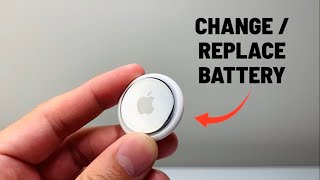
If your AirTag's back cover won't turn, you can free it and swap in a fresh CR2032 coin cell. This suits anyone with a jammed or dead AirTag. You need a new CR2032 battery and a little grip or a soft cloth.
YouTube video: How to Open a Stuck AirTag & Replace the Battery | EASY FIX in SECONDS!
YouTube’s video details do not confirm captions. Check CC in the player for available tracks.
- Video length
- 1 min 43 s
- Time to do it
- 5 minutes
- Difficulty
- Easy
- Steps
- 7
What you need
Steps
Press the metal back cover with your thumb and twist it anticlockwise until it pops off. If it is stuck, grip it with a soft cloth or rubber glove for extra traction.
Lift the cover away and set it aside. The battery sits inside the round tray.
Tip the AirTag over and let the old CR2032 battery drop out, or pry it up gently with a fingernail.
Place a new CR2032 battery in the tray with the plus sign facing up, toward the cover.
Line up the three small tabs on the cover with the slots on the AirTag.
Press the cover down and twist it clockwise until it clicks and sits flush.
Open the Find My app and check that the AirTag shows a battery level and connects.
Tips and common mistakes
Do not use metal tools to pry the cover, as they can scratch the shell or damage the seal.
If the cover still won't budge, warm it slightly with your hands to loosen a tight seal.
Use only a standard CR2032 battery, since other sizes will not fit or power the AirTag.
Questions
Why is my AirTag cover stuck?
The cover can bind from a tight seal or grime. Grip it with a cloth or rubber glove and twist firmly anticlockwise instead of pulling straight up.
Which battery does an AirTag take?
It uses one standard CR2032 coin cell battery, with the plus side facing up toward the cover.
How do I know the new battery works?
After closing the cover, open the Find My app and check that the AirTag reports a battery level and connects normally.
The notes are drafted automatically from video details and general task knowledge. How the guide was prepared
Report a correction