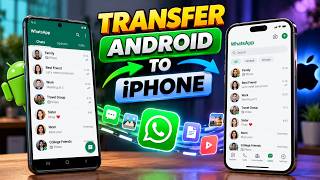
This guide walks you through moving your WhatsApp chats, photos and videos from an old phone to a new one, whether both run Android, both run iPhone, or you're switching between them. It suits anyone replacing a phone who wants their history kept intact. You'll need both phones, the same phone number, and a charger for each.
YouTube video: How to Transfer WhatsApp to a New Phone: Move Your Chats and Photos
Caption availability is unknown. Check the CC control in the YouTube player.
Choose a chapter (11)
- Video length
- 3 min 26 s
- Time to do it
- 15 minutes
- Difficulty
- Easy
- Steps
- 9
What you need
Steps
Update WhatsApp on both phones, plug both in, and check the new phone has enough free storage. Use the same phone number for the whole transfer.
Leave the old phone exactly as it is and don't start new chats on the new phone. Old and new chats generally can't be merged later.
On the old Android phone, open WhatsApp, tap the three dots, then Settings, Chats, Transfer chats. Tap Start and allow the permissions it asks for.
On the new Android phone, verify the same number and pick Transfer from old phone when offered. A QR code appears, so scan it with the scanner open on the old phone and accept the connection.
On the old iPhone, open WhatsApp settings from Settings or your profile picture, go to Chats, then Transfer chats to iPhone and tap Start.
On the new iPhone, verify the same number, allow local network access, and scan the code shown with the old phone. Keep both phones on Wi-Fi and power with WhatsApp open.
Going Android to iPhone: during iPhone setup choose Move to iOS, connect the Android phone with the code shown, and select WhatsApp. Then install WhatsApp on the iPhone, verify the number, and import when prompted.
Going iPhone to Android: use Android Switch or Samsung Smart Switch, choose to copy from iPhone, connect with a cable, and include WhatsApp. Follow the prompts and scan the code with your iPhone.
Wait until the transfer finishes, then open several chats and check photos and videos. Set up a fresh WhatsApp backup before you clear the old phone.
Tips and common mistakes
Keep both phones unlocked, nearby and inside WhatsApp until the transfer completes, or it may stop partway.
Move to iOS needs a new or erased iPhone, so back up anything you want to keep before you reset it.
If you're changing your number too, use WhatsApp's change number option on the old phone before moving your chats.
Some Android phones offer a WhatsApp transfer after setup, so check Android Switch or Smart Switch before resetting the phone.
Questions
Can I merge old and new WhatsApp chats?
Generally no. Don't start new conversations on the new phone until your history has been moved across.
Do I need the same phone number on both phones?
Yes. Verify the same number on the new phone so the transfer matches your account. If you're changing numbers, do that on the old phone first.
What if I already set up my new phone?
Android to iPhone needs a new or erased iPhone. On Android, check Android Switch or Smart Switch first, since some phones still offer a transfer after setup.
The notes are drafted automatically from video details and general task knowledge. How the guide was prepared
Report a correction