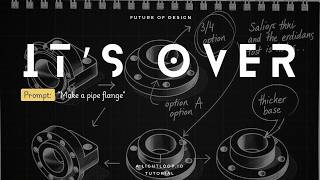
You will build a mechanical part from scratch in SolidCraft, the free open-source CAD program, using the sketch, revolve, extrude, hole, rib, mirror, fillet and chamfer tools. It suits beginners who have never modelled a part before. Download the practice drawing and install SolidCraft v0.40.0-rc.4 first.
YouTube video: SolidCraft Tutorial for Beginners #9 | Learn 3D CAD Modeling
Caption availability is unknown. Check the CC control in the YouTube player.
Choose a chapter (6)
- Video length
- 15 min 44 s
- Time to do it
- 30 minutes
- Difficulty
- Easy
- Steps
- 8
What you need
Steps
Start a new part in SolidCraft, choose a sketch plane and draw the outline with the line and arc tools. Add dimensions until the sketch is fully constrained.
Close the sketch and use Extrude to give the base profile its thickness. Select the sketch, set the distance and confirm.
Check the instructions for your exact model before choosing this setting or amount.
Draw the internal cutout on a new sketch and use Extrude with the cut option to remove the material. Check the wall thickness before you confirm.
Sketch the slot on the face and cut it out. Then place the holes with the Hole tool, setting the diameter and depth.
Draw the rib profile and use the Rib tool to add the support wall. Use Mirror to copy it across the plane of symmetry.
Round the sharp corners with Fillet and break the outer edges with Chamfer. Set the radius or distance small enough to keep the walls thick.
Open the mass and material inspection panel, assign a material and check the volume and mass against the drawing.
Tips and common mistakes
Keep every sketch fully constrained so features do not shift when you change a dimension.
Work in millimetres and check the units before you start, since a CAD file assumes one unit system.
Save a copy before big changes so you can go back if a fillet or chamfer fails.
Add fillets and chamfers last, once all the cuts and holes are in place.
Questions
Do I need to pay for SolidCraft?
No. It is free and open-source software, so you can download and use it at no cost.
Can I follow along without the technical drawing?
Yes, but the drawing gives you the exact dimensions. Without it you can still practise every tool on any shape you like.
Why does my fillet or chamfer fail?
The radius or distance is probably larger than the nearby wall or edge. Try a smaller value and apply it after the main cuts.
The notes are drafted automatically from video details and general task knowledge. How the guide was prepared
Report a correction