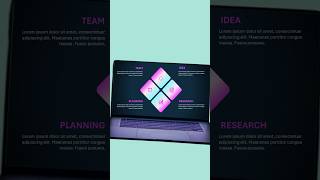
Build a topic slide where a rectangle with cut-out text flies off the screen. You will use Merge Shapes Subtract to cut the text from a shape, then add a Fly Out animation. It suits anyone who knows basic PowerPoint and wants a quick, polished slide.
YouTube video: The Secret PowerPoint Animation That Upgrades Any Slide
YouTube’s video details do not confirm captions. Check CC in the player for available tracks.
Choose a chapter (5)
- Video length
- 2 min 8 s
- Time to do it
- 10 minutes
- Difficulty
- Easy
- Steps
- 8
What you need
Steps
Open a blank slide and set a background color or image behind your design.
Insert a rectangle shape from Insert > Shapes and size it to cover the area where your text will sit.
Add a text box on top of the rectangle, type your topic title, and pick a bold font and size.
Select the rectangle first, then hold Shift and click the text box so both are selected.
Go to Shape Format > Merge Shapes and choose Subtract to cut the text out of the rectangle.
With the cut-out shape selected, open Animations and apply the Fly Out effect.
Set the animation direction and duration in the Animation pane, then drag the shape off the slide edge.
Press Shift+F5 to preview the slide and check the timing before you present.
Tips and common mistakes
Select the rectangle before the text when merging, or Subtract will cut the wrong shape.
Keep the cut-out text large and bold so the hole stays readable during the fly-out.
Use a plain background behind the shape so the text cutout stands out clearly.
Questions
Why does Subtract remove my whole shape?
The order matters. Select the rectangle first, then the text, then apply Subtract so only the text area is removed.
Can I use this animation on several slides?
Yes. Copy the finished shape and paste it onto other slides, then adjust the text and animation timing.
The notes are drafted automatically from video details and general task knowledge. How the guide was prepared
Report a correction