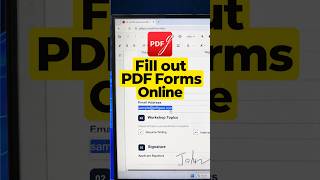
You will design a weekly planner page in Canva, export it as a PDF, then add typeable text fields and checkboxes in DocHub. It suits anyone who wants a digital planner they can fill in on a laptop, tablet or phone. You need a free Canva account, a free DocHub account and a PDF reader to test the result.
YouTube video: How to create a Fillable PDF Planner | Easy Tutorial
YouTube’s video details do not confirm captions. Check CC in the player for available tracks.
- Video length
- 5 min 28 s
- Time to do it
- 30 minutes
- Difficulty
- Easy
- Steps
- 8
What you need
Steps
Open Canva and create a new design at A4 or US Letter size (8.5 x 11 inches). A standard page size keeps the planner printing correctly and gives your form fields room to sit.
Build the weekly spread with text boxes for each day and section headings. Leave clear empty space where you want people to type, such as a notes block or a to-do list.
Keep backgrounds light and avoid busy images behind the blank areas. Field boxes drawn later need a plain surface so the typed text stays readable.
Click Share, then Download, and choose PDF Print as the file type. Do not use PNG or JPG, because DocHub needs a PDF to add form fields.
Sign in to DocHub and upload your PDF with New, then Upload. The file opens in the editor ready for fields.
Open the Forms or Fields menu and pick Text Field. Drag a field over each blank area, resize it to fit, then set the font size and turn on multiline for larger note boxes.
Add Checkbox fields for habit trackers, mood rows and tick lists. Line them up with the printed squares so they look like part of the design.
Give each field a short name such as monday_tasks or water_intake, then save and export the finished PDF. Download it and click every field in your PDF reader to check that typing works.
Tips and common mistakes
Always export PDF Print rather than a screenshot or PNG, or the page will not line up when fields are added.
Make each text field slightly wider than the blank space so long entries do not get cut off.
Name your fields before exporting, which makes it much easier to find and fix them later.
Test the file on a phone as well as a computer, since small screens handle form fields differently.
Questions
Can I make a fillable PDF without paying for software?
Yes. Canva and DocHub both have free plans that cover designing a page and adding basic text fields and checkboxes. Paid plans add extras like more storage and team features.
Will the fields still work when I email the PDF?
Yes, as long as you send the exported PDF file itself and not a link or an image. The recipient opens it in any PDF reader and types straight into the fields.
Can I change the planner design after adding fields?
Small changes are easy, but moving the layout in Canva means you must re-upload the PDF and place the fields again. Finalise the design before you start adding fields.
The notes are drafted automatically from video details and general task knowledge. How the guide was prepared
Report a correction