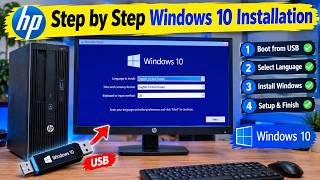
You will create a bootable Windows 11 USB drive with Rufus, boot your PC from it, and run a clean installation. It suits anyone reinstalling Windows or setting up a new PC. You need an 8 GB or larger USB drive, the Windows 11 ISO file, and a PC that supports Windows 11.
YouTube video: How to install Windows 11 from USB
YouTube’s video details do not confirm captions. Check CC in the player for available tracks.
- Video length
- 11 min 43 s
- Time to do it
- 45 minutes
- Difficulty
- Medium
- Steps
- 10
What you need
Steps
Back up your documents, photos, videos and other important files to another drive before you start.
Download the Windows 11 ISO file and install Rufus, then plug your USB drive into the computer.
Open Rufus, pick your USB drive under Device and select the Windows 11 ISO under Boot selection.
Choose GPT for most modern computers using UEFI, click Start, and confirm the erase. Everything on the USB will be deleted.
Leave the USB plugged in, restart the computer, and press the boot-menu key repeatedly. Common keys are F12, F11, Esc and Del.
Select your USB drive in the boot menu and press Enter to start Windows Setup.
In Windows Setup, pick your language, time and keyboard, click Next, then click Install now.
Enter your product key or choose I don't have a product key, select your edition, and accept the license terms.
Choose Custom: Install Windows only (advanced), select the drive or partition, and click Next. Windows copies files and restarts several times.
After installation, connect to Wi-Fi or Ethernet, sign in with your Microsoft account, create a PIN, and set your privacy options.
Tips and common mistakes
Let Windows Update run after setup so drivers and updates install automatically.
Double-check the USB drive before you click Start in Rufus, since the whole drive gets erased.
If the boot menu does not open, check your PC manual for the correct key and press it right after powering on.
Questions
Do I need a product key to install Windows 11?
No. You can choose I don't have a product key during setup and activate Windows later.
Will this delete my existing files?
Yes, a clean install removes the files on the selected drive or partition, so back up anything important first.
How big should the USB drive be?
Use a USB flash drive of 8 GB or larger.
The notes are drafted automatically from video details and general task knowledge. How the guide was prepared
Report a correction