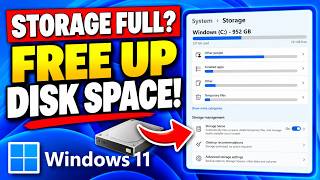
Windows Has a Hidden 70GB Folder Microsoft Never Told You About (Fix It Now), by Tech Authority Zone on YouTube. 6 min 33 s.
- Video length
- 6 min 33 s
- Time to do it
- 20 minutes
- Difficulty
- Medium
- Steps
- 8
What you need
Steps
Open Settings, go to System, then Storage, and note the free space shown for your C drive so you can compare it at the end.
In File Explorer, click View, then Show, and turn on Hidden items. Open Folder Options and untick Hide protected operating system files so system folders appear.
Go to C:\Windows\Logs\CBS. Select the old.cab and.log files, leave any file Windows reports as in use, and delete the rest.
Open C:\Windows\System32\config\systemprofile\AppData\Local\CapabilityAccessManager and delete the files inside it. Keep the folder itself.
Open Services, stop Windows Update and Background Intelligent Transfer Service, then delete everything inside C:\Windows\SoftwareDistribution\Download.
Start both services again and set them back to their original startup type so Windows Update keeps working normally.
Empty the Recycle Bin, then run Disk Cleanup as administrator and choose Clean up system files to remove leftover update files.
Return to Settings, System, Storage and refresh. The free space figure should now be higher than the number you wrote down.
Tips and common mistakes
Create a restore point before you touch system folders so you can roll back if something breaks.
Delete the contents of a folder, not the folder itself, or Windows may recreate it with errors.
Skip any file that refuses to delete. It is usually locked because it is in use and will clear after a restart.
Questions
Is it safe to delete the Capability Access Manager folder?
Deleting its contents is generally safe because Windows rebuilds that data as needed. Do not remove the folder itself, and keep a restore point in case something misbehaves.
Why did my free space not change?
Locked files in use cannot be deleted, and some space goes to the Recycle Bin or System Restore. Empty the bin, restart, then check the Storage page again.
Do I need extra software?
No. File Explorer, Disk Cleanup and the Services app that ship with Windows 11 are enough to do the whole job.
This guide was drafted from the video's details and general task knowledge. It has not been checked against the full video. Check the video and relevant product instructions before following a procedure. Report a correction.