A splash on the touchpad can leave the pointer jumping, sticking or dead. This guide walks you through drying the laptop, cleaning the pad, checking the Windows touchpad settings and driver, and reseating the ribbon cable. It suits anyone who is happy to remove a laptop's bottom cover.
YouTube video: Laptop touchpad pointer erratic/dysfunctional after liquid contact - fix
Caption availability is unknown. Check the CC control in the YouTube player.
- Video length
- 1 min 12 s
- Time to do it
- 30 minutes plus 48 hours dryin
- Difficulty
- Medium
- Steps
- 8
What you need
Steps
Switch the laptop off and pull the charger out right away. Remove the battery if it comes out without tools. Hold the laptop on its side so liquid runs out away from the keyboard.
Leave the laptop open in a warm, dry room with good airflow for at least 24 to 48 hours. Do not use a hairdryer, an oven or a bag of rice, which can push moisture further in.
When it is fully dry, wipe the touchpad with a lint-free cloth lightly dampened with 90 percent isopropyl alcohol. Let it evaporate for a few minutes before you switch on.
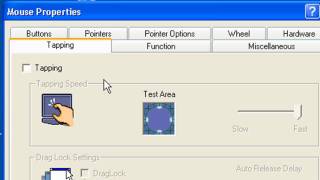
Start Windows and open Settings, then Devices, then Touchpad. Check the touchpad is switched on, set the cursor speed to the middle and turn off any tap delay that makes the pointer feel sluggish.
Open Device Manager, expand Mice and other pointing devices, right-click the touchpad and pick Update driver. If that changes nothing, choose Uninstall device, then restart so Windows reinstalls it.
Plug in a USB mouse and use it for a few minutes. If the pointer behaves normally, the fault is in the touchpad itself, not in Windows or the graphics driver.
Shut down and unplug the laptop again, then remove the bottom cover. Find the flat ribbon cable running from the touchpad, lift its locking tab and push the cable back in firmly.
If the spill was sticky or the pointer still drifts, fit a replacement touchpad module for your exact laptop model. Reconnect the ribbon cable, refit the cover and test the pointer again.
Tips and common mistakes
Never switch a wet laptop on to test it, even for a second, because a short can kill the board.
Disconnect the battery before you open the case, and touch a bare metal surface first to discharge static.
Isopropyl alcohol at 90 percent or higher carries water away and dries far faster than screen cleaner.
A touchpad that only misbehaves with taps, not with movement, is usually a settings problem rather than damage.
Questions
Why does the cursor jump around after a spill?
Liquid leaves a residue on the touchpad surface or inside its connector, so it reads your finger position wrongly. Cleaning the pad and reseating the cable fixes most cases.
Can I use the laptop while it dries?
No. Use another machine until the drying time is up, since powering on early can turn a small spill into permanent damage.
Do I need to replace the touchpad?
Only if cleaning, a driver reinstall and a cable reseat all fail. Water usually just needs drying and cleaning, while sugary drinks are more likely to need a new module.
The notes are drafted automatically from video details and general task knowledge. How the guide was prepared
Report a correction