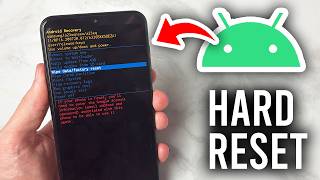
A factory data reset wipes everything on your Galaxy Tab A (2019) and returns it to the setup screen you saw on day one. Use it when the tablet is slow, stuck or you are passing it on to someone else. Back up first, because all apps, photos and accounts on the internal storage are erased.
YouTube video: Samsung Galaxy Tab A (2019): How to make a factory data reset (hardreset) with the buttons?
Caption availability is unknown. Check the CC control in the YouTube player.
- Video length
- 2 min 20 s
- Time to do it
- 15 minutes
- Difficulty
- Easy
- Steps
- 9
What you need
Steps
Back up what you want to keep. Open Settings, then Accounts and backup, and sync your Google and Samsung accounts. Copy photos and files off the tablet or to a microSD card.
Charge the tablet to at least 50 percent, or plug it into the charger for the whole reset. A flat battery mid-wipe can leave it stuck.
Power the tablet off completely. Press and hold the Power button, then tap Power off on the screen and wait for the display to go dark.
Press and hold Volume Up and Power at the same time. Keep holding both until the Samsung logo appears, then let go.
Wait for the blue Android recovery menu to load. If the tablet just boots normally, power it off and try the button combination again.
Use the Volume Down button to move the highlight down to Wipe data/factory reset. Press the Power button to select it.
Move the highlight to Yes or Factory data reset with Volume Down, then press Power to confirm. The screen shows the progress as it wipes.
When Data wipe complete appears, Reboot system now is highlighted. Press the Power button and let the tablet restart.
Set the tablet up again from the welcome screen. Sign in with the same Google account that was on it before, then restore your backup.
Tips and common mistakes
A recovery reset does not always clear a microSD card, so take it out first if you plan to sell the tablet.
You will need the Google account that was last on the tablet, or the setup screen will lock you out.
Do not release Volume Up and Power too early, or the tablet simply turns on instead of opening recovery.
The first boot after a reset can take several minutes, so leave it plugged in and be patient.
Questions
Will I lose everything on the tablet?
Yes. Apps, photos, messages, accounts and settings on the internal storage are erased. Anything saved to a microSD card or already backed up to Google stays safe.
What if the recovery menu does not appear?
Power the tablet fully off first, then hold Volume Up and Power together until the logo shows. If it still boots normally, hold the buttons longer or check that the battery is not empty.
Why does it ask for my Google account after the reset?
Factory reset protection ties the tablet to the last Google account used on it. Sign in with that same account and password to get past the setup screen.
The notes are drafted automatically from video details and general task knowledge. How the guide was prepared
Report a correction