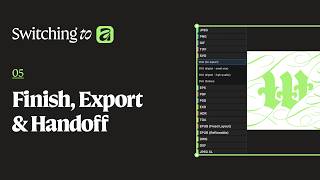
Playground AI lets you take a finished logo and turn it into a clean file you can use anywhere. You will upscale the image, remove its background for a transparent PNG, and vectorize it to SVG for cutting machines. It suits beginners with a design already made in Playground AI.
YouTube video: Exporting, Upscaling, and Removing Backgrounds! (Lesson 3)
Caption availability is unknown. Check the CC control in the YouTube player.
Choose a chapter (8)
- Video length
- 4 min 18 s
- Time to do it
- 10 minutes
- Difficulty
- Easy
- Steps
- 8
What you need
Steps
Open your finished design in Playground AI and find the Export menu. This is where every file option lives, so start here before touching any settings.
Pick Fast upscale for everyday graphics like simple logos, icons and social posts. It is the quicker option and is enough when the artwork has broad, flat shapes.
Pick Precise upscale when the design has fine detail, thin lines or small text. It takes longer but holds the edges together better on busy artwork.
Click Remove background to strip the backdrop and get a transparent PNG. Use this when the logo needs to sit on a shirt, a slide or another image.
Choose the combined option to upscale and remove the background in one pass. This saves you running the two jobs separately on the same logo.
Select Vectorize to SVG to convert the PNG into a vector file. This is the format Cricut and other cutting machines need for clean cut lines.
Download the finished file and open it to check the edges. Zoom in on curves and letters to confirm nothing turned jagged or broke apart.
Upload the SVG into Cricut Design Space and check the cut lines before sending it to the machine.
Tips and common mistakes
Upscale before you vectorize, since a sharper source gives cleaner vector curves.
Fast upscale is fine for flat logos, but switch to precise for thin lines and small text.
Check the edges after removing a background, as light or busy backdrops can leave stray pixels.
Keep your fingers clear of the blade and clamp when loading material into a cutting machine.
Questions
What is the difference between fast and precise upscale?
Fast upscale is quicker and suits simple graphics with broad shapes. Precise upscale takes longer and keeps fine detail, thin lines and small text sharper.
Do I need an SVG for Cricut?
Yes, cutting machines like Cricut work best with vector files such as SVG, because the cut lines stay clean at any size. Use the vectorize option to convert your PNG.
Will upscaling make my logo blurry?
No, the point of the AI upscale is to add size without the pixelation you get from simply stretching an image. Pick precise mode if the design has fine detail.
The notes are drafted automatically from video details and general task knowledge. How the guide was prepared
Report a correction