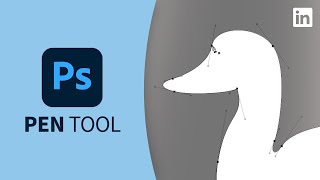
You will learn to draw clean vector shapes in Adobe Photoshop using the Pen tool. It suits beginners who want paths they can scale and edit later. You need Photoshop open and a blank canvas or reference image.
YouTube video: How To DRAW SHAPES With The Pen Tool In Photoshop
Caption availability is unknown. Check the CC control in the YouTube player.
Choose a chapter (4)
- Video length
- 16 min 48 s
- Time to do it
- 20 minutes
- Difficulty
- Easy
- Steps
- 8
What you need
Steps
Select the Pen tool from the left toolbar, just above the Type tool, or press P on your keyboard.
In the options bar, choose Path mode. Use Shape mode instead only if you want Photoshop to create a filled vector shape layer straight away.
Click once on the canvas to place your first anchor point. This starts the path that will become your shape.
Click again to add a straight segment. For a curve, click and drag to pull out direction handles, then release.
Keep adding anchor points around the outline. Use short drags for gentle curves and longer drags for tighter bends.
To close the shape, move the Pen tool over the first anchor point and click it. The path now forms a complete outline.
Right-click the path and choose Fill Path, Stroke Path, or Make Selection. Pick the option that matches what you need.
To adjust the shape, choose the Direct Selection tool (A) and drag anchor points or handles. Cmd-click (Ctrl-click) with the Pen tool to select points.
Tips and common mistakes
Hold Shift while clicking to constrain a straight segment to 45-degree angles.
Use as few anchor points as possible; extra points make the path harder to edit later.
If a point lands in the wrong place, press Cmd+Z (Ctrl+Z) right away instead of deleting the whole path.
Click and drag rather than click to make smooth curves, and keep the drags short at first.
Questions
Where is the Pen tool in Photoshop?
It sits in the left toolbar above the Type tool. You can also press P to switch to it.
How do I close a path?
Click the first anchor point again with the Pen tool. The path closes so you can fill it, stroke it, or turn it into a selection.
Can I edit the shape after drawing it?
Yes. Choose the Direct Selection tool (A) and drag anchor points or handles. The path stays editable.
The notes are drafted automatically from video details and general task knowledge. How the guide was prepared
Report a correction