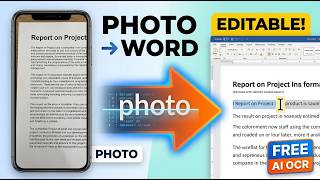
A scanned PDF is just pictures of text, so Word cannot edit it until OCR reads the letters. This guide walks you through Nitro PDF Pro's OCR and Word conversion tools so you end up with a.DOCX file you can type in. It suits anyone with a clean scan and a copy of Nitro PDF Pro.
YouTube video: How to Convert a Scanned PDF to an Editable Word Document Using Nitro PDF Pro
Caption availability is unknown. Check the CC control in the YouTube player.
- Video length
- 3 min 21 s
- Time to do it
- 10 minutes
- Difficulty
- Easy
- Steps
- 8
What you need
Steps
Launch Nitro PDF Pro and open your scanned PDF with File > Open, or drag the file onto the Nitro window. Check that the pages show as images, not selectable text.
Look at the toolbar and click the Convert tab. This is where Nitro keeps its OCR and Word export tools.
Choose the To Word option. In the dialog that opens, pick Microsoft Word Document (.docx) as the output format.
Turn on the OCR setting for image based pages. Nitro needs this switched on, otherwise it copies the page pictures into Word with no editable text.
Set the OCR language to match the document, such as English, and choose your page range if you only need part of the file.
Click Convert and wait while Nitro recognises the text. A short scan takes seconds, a long report can take a minute or two.
Save the new.DOCX file to a folder you can find easily, then open it in Word and click into the text to confirm you can edit it.
Fix any misread words, broken line breaks or shifted tables, then save the document again.
Tips and common mistakes
Scan at 300 dpi or higher, since blurry or low resolution pages give poor OCR results.
Choose the correct OCR language before converting, or accented letters and punctuation come out wrong.
Keep the original PDF untouched so you can redo the conversion if the Word file looks messy.
Tables and columns often shift during OCR, so expect to spend a few minutes tidying the layout.
Questions
Do I need Nitro PDF Pro to do this?
The OCR and Word export steps here use Nitro PDF Pro, which is a paid desktop program. Free PDF readers usually cannot recognise text in a scanned file.
Why is my Word file still showing images instead of text?
OCR was probably not enabled before you converted, so Nitro copied the page pictures across. Run the conversion again with the OCR box ticked.
Will the formatting stay exactly the same?
Simple text and basic headings usually survive well. Complex tables, columns and graphics may need manual adjustment in Word after the conversion.
The notes are drafted automatically from video details and general task knowledge. How the guide was prepared
Report a correction