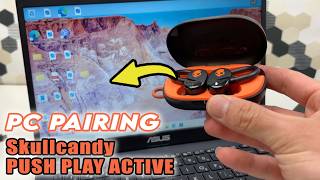
HP Laptop : How to Connect Bluetooth Headphones, by Tricks Tips Fix on YouTube. 2 min 49 s.
- Video length
- 2 min 49 s
- Time to do it
- 5 minutes
- Difficulty
- Easy
- Steps
- 8
What you need
Steps
Turn on your headphones and put them in pairing mode. Most models need you to hold the power button until a light flashes.
On the HP laptop, open Settings from the Start menu, then click Bluetooth and devices.
Check that the Bluetooth switch is turned on. If it is off, click it to enable it.
Click Add device, then choose Bluetooth from the list of options.
Wait while Windows scans. Your headphone name should appear in the list within a few seconds.
Click your headphones in the list. Windows pairs and connects them automatically.
Click Done to close the window. Play some audio to confirm the sound comes through the headphones.
If you hear nothing, click the speaker icon in the taskbar and pick your headphones as the output device.
Tips and common mistakes
Keep the headphones within about a metre of the laptop while pairing.
If the headphones do not appear, turn Bluetooth off and on again, then rescan.
Remove old paired devices you no longer use so the list stays short and clear.
Questions
My HP laptop does not show a Bluetooth option. What now?
Some HP models have a physical wireless switch or a function key that turns Bluetooth off. Check the keyboard for a wireless or airplane mode key and make sure airplane mode is off.
Do I need to pair again every time?
No. Once paired, the headphones connect automatically when you turn them on and they are in range, as long as Bluetooth is on.
Why is the sound still coming from the laptop speakers?
Windows may still have the speakers selected. Click the speaker icon in the taskbar and choose your headphones as the playback device.
This guide was drafted from the video's details and general task knowledge. It has not been checked against the full video. Check the video and relevant product instructions before following a procedure. Report a correction.