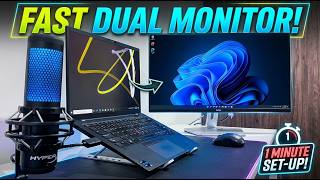
Plug your laptop into an external monitor with an HDMI cable and set Windows to mirror or extend the screen. It suits anyone who wants a bigger display or a second workspace. You only need a laptop with an HDMI port, a monitor and a cable.
YouTube video: How to Connect Laptop to Monitor Using HDMI Cable
Caption availability is unknown. Check the CC control in the YouTube player.
- Video length
- 4 min 13 s
- Time to do it
- 10 minutes
- Difficulty
- Easy
- Steps
- 8
What you need
Steps
Place the monitor on your desk and plug it into power. Turn the monitor on and press its input button until HDMI is selected.
Plug one end of the HDMI cable into the laptop's HDMI port and the other end into the monitor's HDMI port. Push both in firmly.
Wait a few seconds. Windows should detect the monitor and show a picture automatically.
Press Windows key and P together to open the display options on the right of the screen.
Choose Duplicate to show the same screen on both displays, or Extend to use the monitor as a second desktop.
Pick Second screen only if you want the laptop screen to go dark and use just the monitor.
Right-click the desktop, open Display settings, and drag the monitor icons to match how the screens sit on your desk.
Set the resolution and scale for each display, then click Keep changes when Windows asks.
Tips and common mistakes
If nothing appears, try another HDMI cable or port, since a loose or faulty cable is the usual cause.
On a Chromebook, open Settings, then Device, then Displays to change mirror or extend mode.
Use Extend rather than Duplicate for more workspace, and set the monitor as the main display if you like.
Unplug the cable before moving the laptop to avoid bending the HDMI port.
Questions
Why does my monitor say no signal?
Check that the monitor input is set to HDMI and that both cable ends are pushed in fully. Try a different cable or port to rule out a bad connection.
Can I connect without an HDMI port on my laptop?
Yes. Use a USB-C to HDMI adapter or a USB-C dock if your laptop has USB-C with display support. Check the laptop specs first.
Does the HDMI cable carry sound too?
Yes, HDMI sends audio as well. If sound stays on the laptop, open the sound settings and pick the monitor as the output device.
The notes are drafted automatically from video details and general task knowledge. How the guide was prepared
Report a correction