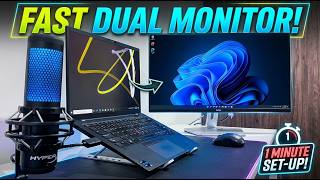
Plug a gaming laptop into a monitor to get a bigger screen and often a higher refresh rate. This suits anyone with a laptop that has HDMI, DisplayPort or USB-C video out. You need the right cable for your ports and a monitor with a spare input.
YouTube video: How to Connect Gaming Laptop to External Monitor *2023*
Caption availability is unknown. Check the CC control in the YouTube player.
Choose a chapter (11)
- Video length
- 7 min 38 s
- Time to do it
- 15 minutes
- Difficulty
- Easy
- Steps
- 8
What you need
Steps
Check the video ports on your laptop and monitor. Look for HDMI, DisplayPort, Mini DisplayPort or USB-C with DisplayPort support. Note which version each port uses.
Pick a cable that matches both ends. Use HDMI 2.0 or 2.1 for high refresh rates, or DisplayPort for G-Sync and FreeSync monitors.
Power off both devices, then connect the cable from the laptop to the monitor. Plug the monitor into the wall and turn it on.
Turn on the laptop. Press the monitor input button until it shows the correct source, such as HDMI 1 or DisplayPort.
In Windows, press Windows key + P and choose Extend to use both screens, or Second screen only to use just the monitor.
Open Device Manager or your laptop maker's app and update the graphics driver to the latest version.
Right-click the desktop, open Display settings, and set the monitor's resolution and refresh rate to its highest supported values.
On an Nvidia card, open the Nvidia Control Panel and set the monitor as the primary display. Enable G-Sync if your monitor supports it.
Tips and common mistakes
Use a cable rated for your target refresh rate, since an old HDMI cable may cap you at 60Hz.
Set the external monitor as the main display so games launch on the big screen.
Keep the laptop lid open or set it to do nothing when closed, so it does not sleep mid-game.
Questions
Will an external monitor boost my FPS?
Not by itself. A monitor does not add frames, but a higher refresh rate makes games look smoother if your laptop can already push those frames.
Why does my monitor show no signal?
Check the input source on the monitor, reseat the cable, and try another port. Press Windows key + P and pick Extend or Duplicate.
Can I use a USB-C hub to connect the monitor?
Yes, if the hub and laptop port support DisplayPort Alt Mode. Cheap hubs may limit resolution or refresh rate.
The notes are drafted automatically from video details and general task knowledge. How the guide was prepared
Report a correction