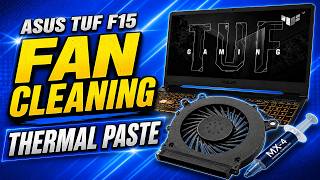
HP 14s Fan Cleaning & Thermal Paste Replacement, by Bongkar Laptop on YouTube. 16 min 54 s.
- Video length
- 16 min 54 s
- Time to do it
- 45 minutes
- Difficulty
- Medium
- Steps
- 10
What you need
Steps
Shut the laptop down completely, unplug the charger and any cables, then hold the power button for a few seconds to drain leftover charge.
Flip the laptop over and remove every screw from the bottom cover. Keep them in a cup or tray so none go missing.
Slide a plastic pry tool into the seam along the edge and work around the case to pop the clips. Lift the bottom cover off slowly.
Find the small connector running from the battery to the mainboard and gently pull it free. This cuts power to the board while you work.
Unscrew the fan and heatsink assembly. Lift it straight up and set it aside without bending the copper heat pipes.
Brush dust out of the fan blades and the heatsink fins. Hold the fan still with a finger so it does not spin while you brush.
Wipe the old grey paste off the CPU and GPU with isopropyl alcohol and a lint-free cloth. Clean the metal contact plate on the heatsink too.
Put a pea-sized dot of new thermal paste in the centre of each chip. Do not spread it, the pressure of the heatsink will do that.
Lower the heatsink back into place and tighten the screws in a diagonal pattern, a little at a time, so the pressure stays even.
Reconnect the battery, press the bottom cover back on until the clips click, and refit all the screws. Boot the laptop and check the fan.
Tips and common mistakes
Work on a clean table and sort the screws by length, since case screws and heatsink screws are not interchangeable.
Do not use a household vacuum on the fan, as the static it builds can damage the board. A soft brush or a puff of air is safer.
Use only a small amount of paste. Too much can squeeze onto the board and make a mess.
Test the laptop before you refit every screw, so you can reopen it easily if the fan connector is loose.
Questions
How often should I replace the thermal paste?
Every two to three years is a sensible interval for most laptops. If the fan is loud and the laptop gets hot soon after a clean, it is probably time.
Can I clean the fan without removing the heatsink?
Yes, if the dust is loose. You can brush the fan and blow air through the vents, but you cannot replace the paste without lifting the heatsink.
What happens if I forget to disconnect the battery?
You risk a short circuit if a screw or tool touches the board. Always unplug the internal battery connector before removing any part.
This guide was drafted from the video's details and general task knowledge. It has not been checked against the full video. Check the video and relevant product instructions before following a procedure. Report a correction.