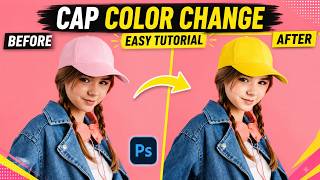
Repaint a single object in PhotoCraft while keeping its texture and shading. This suits anyone editing product photos, clothing or props who wants a quick recolor without building selections. You only need PhotoCraft open with your image loaded.
YouTube video: How to Change the Color of an Object in PhotoCraft
Caption availability is unknown. Check the CC control in the YouTube player.
- Video length
- 2 min 53 s
- Time to do it
- 10 minutes
- Difficulty
- Easy
- Steps
- 9
What you need
Steps
Open your image in PhotoCraft and duplicate the layer so the original stays untouched. Work on the copy.
Find the Brush tool in the toolbar. Click and hold it to open the tool group.
Pick the Color Replacement tool from that group. It repaints the color under your brush.
Set the foreground color to the new color you want on the object.
Zoom in on the object so you can see its edges clearly before you start painting.
Choose a soft round brush and a size that fits the object. A smaller brush gives more control near edges.
Paint over the object in short strokes. The original texture and shading stay visible underneath.
If the color spills onto the background, undo and paint again with a smaller brush or lower opacity.
Toggle the duplicate layer on and off to compare before and after, then save your file.
Tips and common mistakes
Work on a duplicate layer so you can delete it and start over at any time.
Lower the brush opacity for gradual color so shading looks natural.
Keep the brush inside the object's edges to avoid tinting the background.
Questions
Does this keep the object's texture and shadows?
Yes. The Color Replacement tool changes the hue under the brush while the original texture and shading stay in place.
What if the new color looks flat?
Reduce the brush opacity and build the color in a few passes, or lower the layer opacity slightly.
Can I undo a mistake?
Yes, use undo, or delete the duplicate layer and start again on a fresh copy.
The notes are drafted automatically from video details and general task knowledge. How the guide was prepared
Report a correction