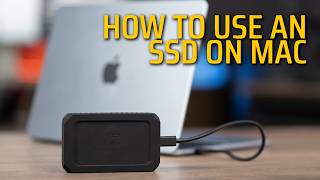
Set up a full offline backup of your Mac on an external SSD using Time Machine, then protect the data Time Machine handles poorly, like photos, contacts and passwords. It suits any Mac user who wants a backup that does not depend only on iCloud. You need an external SSD and a spare USB or USB-C port.
YouTube video: Back Up Your Mac: Complete Guide [2023]
Captions are available. Use CC in the YouTube player.
Choose a chapter (15)
- Video length
- 12 min 35 s
- Time to do it
- 30 minutes
- Difficulty
- Easy
- Steps
- 9
What you need
Steps
Plug the external SSD into your Mac. Open Blackmagic Disk Speed Test from the App Store and run it to check the drive's read and write speeds.
If either speed reads under 200MB/sec, replace the drive with a newer SSD before relying on it for backups.
Open Disk Utility, select the drive, and erase it as APFS with a GUID partition map so Time Machine can use it cleanly.
Go to System Settings, then General, then Time Machine. Click Add Backup Disk and pick your external SSD.
Turn on encryption for the backup and set a password you will remember. Time Machine then runs its first full backup automatically.
Leave the Mac plugged in and awake until the first backup finishes. Later backups run hourly when the drive is connected.
Copy your Photos library to a second location and keep the originals, since Time Machine can be unreliable with photo libraries.
Export contacts, calendars and music to files on the external drive, and store passwords in a password manager with a secure backup.
Set up a Legacy Contact in your Apple ID settings so someone you trust can request access to your iCloud data if needed.
Tips and common mistakes
Keep the backup drive disconnected or stored off site when not in use, so a theft or power surge cannot destroy both copies.
Test a restore of a single file now and then, because a backup you have never restored is only a guess.
ICloud is not a full backup on its own. Treat it as one layer and keep the offline copy updated.
Encrypt the Time Machine backup, especially if the drive leaves your home.
Questions
How big should my backup drive be?
A common rule is at least twice the size of the storage in your Mac, so there is room for older versions of files. Larger is fine and gives you more history.
Does Time Machine back up everything?
It covers most files and system data, but photo libraries, mail and some app data can be awkward. Keep separate copies of your most important items.
Can I use the same drive for Time Machine and other files?
Yes, if you partition it. Give Time Machine its own partition so the backup space is not used up by other files.
The notes are drafted automatically from video details and general task knowledge. How the guide was prepared
Report a correction